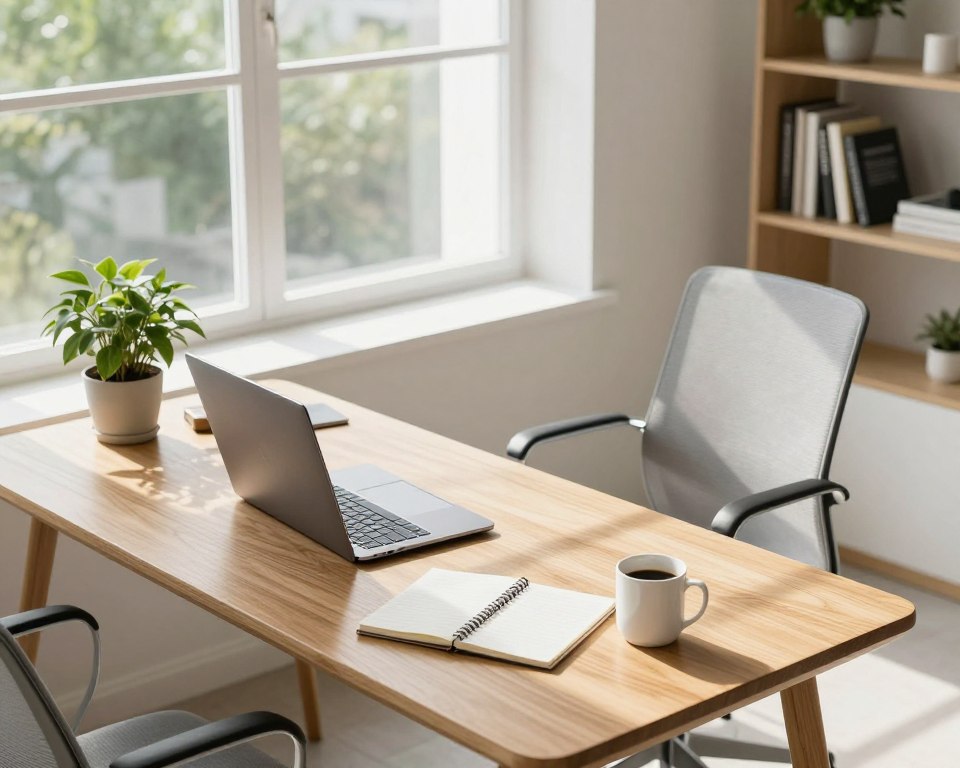
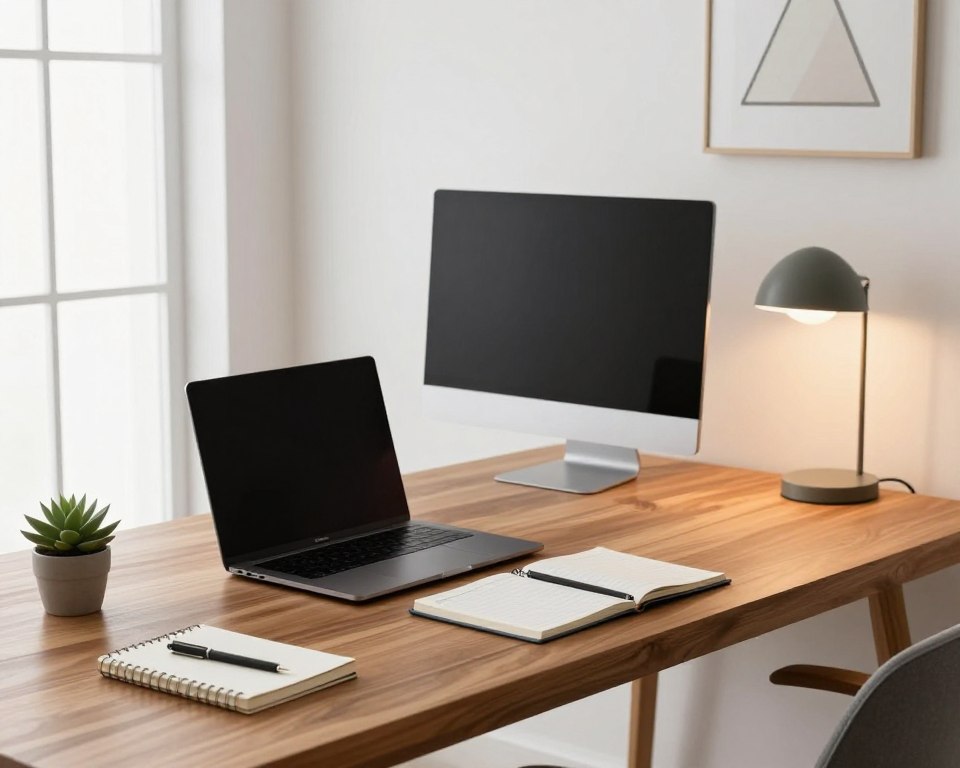
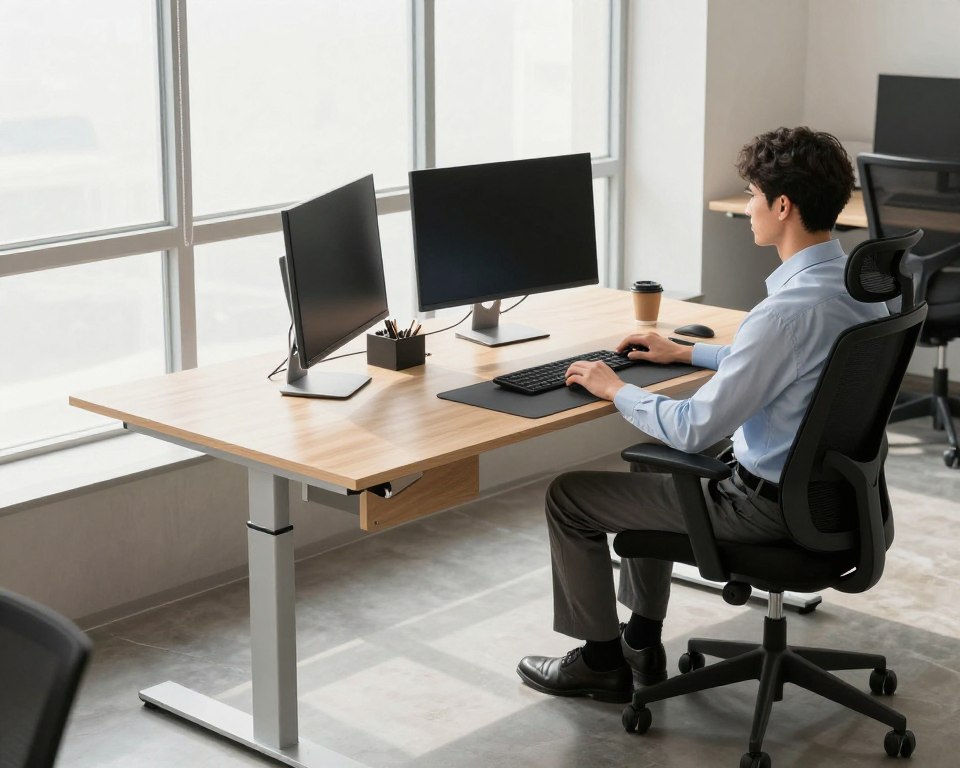
Good ergonomics means shaping your desk to fit your body so you can work without extra strain. This guide shows a clear, step-by-step method you can use at home or in the office to cut neck and back pain.
Start with the chair, then bring the keyboard and mouse in close, raise the monitor to eye level, and finish with small habits that stop strain from building. Quick wins include feet flat on a support, a slight chair recline, a centered keyboard, mouse beside it, and your monitor at arm’s length.
Small setup changes reduce forward head posture, shoulder elevation, and prolonged reaching. That lowers eye strain and repetitive-movement load and helps long-term health.
Remember: the best arrangement is adjustable and personal. Use measurable targets—angles and distances—you can tweak to fit your height and body. This article will walk you through tools like a footrest, monitor arm, or laptop riser and simple movement habits to keep discomfort away.
Start With Your Chair and Sitting Posture to Protect Your Neck and Lower Back
Before adjusting your keyboard or monitor, fix the chair so your pelvis and spine get steady support. A stable seat reduces compensations that lead to neck and lower back strain.
Set seat height
Adjust seat height until your feet are flat on the floor and your knees sit level with or slightly lower than your hips. This keeps the hips and knees aligned and helps distribute weight evenly.
Sit back with support
Push your hips as far back as the seat allows so the backrest contacts mid and upper back. Add a small pillow or inflatable cushion for lumbar support if your chair lacks lower back padding.
Allow a slight recline
Set the backrest around 100°–110°. A small recline supports a neutral spine during computer work and feels less tiring than rigid upright sitting.
Armrests and foot support
Adjust or remove armrests so shoulders stay relaxed and arms can rest naturally at the desk. If your feet dangle, use a footrest so they remain flat and reduce low-back loading.
Tip: Good posture still needs movement. Alternate sitting and sitting standing or short walks to help maintain comfort and long-term health. For more on chair targets and step-by-step setup, see the proper chair setup guide.
Dial In Your Ergonomic Workstation Layout for Keyboard and Mouse Comfort
Keep your input devices close so reaching doesn’t pull your shoulders forward or your neck out of alignment.
Why this matters: when the keyboard and mouse sit too far, your body compensates. That adds strain during long computer tasks.
Center and pull in the keyboard
Pull your chair close, place the keyboard directly in front of you, then shift it so the keys you use most are centered with your torso.
Elbow, arm, and shoulder cues
Keep elbows slightly open at about 100°–110° with upper arms close to your body. Shoulders should be relaxed and not shrugged.
Wrist and mouse guidance
Keep wrists and hands straight. Use a palm support only between keystrokes, not while typing.
Place the mouse as close as possible to the keyboard so it stays within easy reach. A mouse-bridge or a slightly inclined surface can help bring the mouse nearer when desk space is tight.
“Center the most-used keys with your body and move from the elbow, not the wrist.”
Tray and tilt tips
An adjustable keyboard tray can fine-tune height and tilt but must allow leg clearance and not push you away from phone or papers. If you sit more upright, try a slight negative tilt; if reclined, a slight positive tilt may help keep wrists neutral.
Quick self-check: shoulders down, elbows near your sides, wrists straight, mouse reachable without leaning. Adjust in small steps until it feels natural.
Position Your Monitor, Laptop, Phone, and Documents at Eye Level to Reduce Eye Strain
Place your main screen so your eyes meet it with only a small downward glance. This keeps your head neutral and lowers neck and eye strain when you work for long periods.
Center the monitor and set height
Center the monitor above the keyboard and set the top third of the screen at seated eye level. Sit at about an arm’s length away and adjust for clear vision.
Control glare and viewing distance
- Turn the screen to sit at right angles to windows and use blinds to cut reflections.
- Tilt the screen and lower brightness to reduce overhead glare.
- Start at arm’s length, then move closer or farther for comfort.
Keep documents and phone handy
Use an in-line copy stand so papers sit between the keyboard and screen. Keep the phone within reach and use a headset when you talk to avoid cradling.
Tools to reach eye level and free surface space
Use a monitor arm, monitor stand, or laptop riser and pair them with an external keyboard and mouse. These tools free desk surface space and make it easier to keep items close and reduce forward reach.
Tip: For step-by-step targets and more desk setup tips, see the proper desk setup.
Conclusion
Wrap up your setup by making support, reach, and motion simple and repeatable. Start with chair support, pull the keyboard and mouse in close, then set screens and documents at eye level.
Use clear targets: feet supported, a slight recline, elbows open, wrists straight, and the screen about an arm’s length away. These steps cut discomfort during long computer tasks and help protect long-term health.
Movement makes it work: take 1–2 minute stretch breaks every 20–30 minutes and step away 5–10 minutes each hour. Look into the distance for at least 20 seconds to ease eye strain.
If you still can’t reach neutral positions, prioritize adjustable tools like a footrest, monitor stand, or keyboard tray. A simple, well-tuned desk setup supports comfort, better health, and more productive work with less strain.