What “work desk setup productivity” looks like in real life is simple: tasks finish faster, aches happen less, distractions shrink, and transitions between deep focus and meetings feel smooth.
This short guide previews practical changes you can make now for a better workspace at home or in the office. Expect a long-form, step-by-step manual that covers standing stations, screen height, cable control, lighting, ergonomics, clutter routines, and sound management.
Start with high-impact upgrades: a comfortable chair, correct screen height, improved lighting, and cleaner cables before spending on looks. These moves give measurable gains like less visual clutter and sharper focus.
This article helps remote staff, hybrid teams, students, creatives, and power users. Recommendations scale to small corners or large rooms and to tight or generous budgets.
Small fixes compound: reduced glare, better storage, and neater cords add up to calmer, more consistent days. Read on for a clear, actionable guide you can use right away.
What “Productive” Means for Your Desk Setup Today
Productive days start when your immediate area removes friction and supports focused effort. Define productivity as high-quality output, sustained focus, and less physical strain so the desk helps you instead of hindering you.
Common bottlenecks: clutter, discomfort, glare, and noise
Clutter—papers, loose cables, and random items—forces attention switching and slows deep focus. Good cable management and simple storage stop visual clutter and speed task transitions.
Discomfort adds physical interruptions. A small chair or wrong height pulls you out of flow and reduces comfort.
Glare and poor lighting cause eye strain and slow screen work. Position lights to cut reflections and use task lamps for close tasks.
Noise is a real factor in shared rooms and homes. Noise-canceling headphones can cut ~30 dB, while acoustic panels may absorb up to 70% of ambient sound.
How small upgrades compound into faster, calmer days
Start with one friction point—clear the surface, add a lamp, tame cables, or add acoustic control. Stack those wins and the overall environment becomes easier to use. A daily five-minute reset keeps gains reliable and protects your focus and productivity.
Assess Your Work Style and Space Before You Buy Anything
Pause and map your daily rhythm so purchases match the way you actually get things done.
Identify your task mix
List typical blocks: deep focus, video meetings, creative tasks, or heavy multitasking. Note how much time each needs and which tools you use most.
Measure the area and power access
Simple measurements save returns. Measure usable surface, clearance for movement, and nearby wall space for vertical storage.
- Usable surface area (in inches)
- Chair clearance and reach zone
- Where outlets and power strips provide access
Set priorities based on preferences
Order choices: comfort first, focus second, storage third. Plan connectivity for power and peripherals—docking stations or USB hubs help power-user layouts.
Tip: Map a “day in the life” and decide what stays on the desk and what goes into drawers. Task management tools can boost efficiency ~25%, and simple time tracking improves allocation precision.
Home Office vs. Office Desk Setup: What Changes and What Stays the Same
Choosing between a home office and a corporate arrangement shapes what you can change and what must stay the same. Small choices affect daily rhythm and how you control interruptions.
Personalization, distractions, and cost
Home setups offer broad personalization — lighting, rugs, and decor reflect your preferences. That freedom helps with comfort but also invites household interruptions.
Office environments tend to be standardized. Most companies limit personal items to small desktop pieces. Upgrades often require IT or facilities approval, while the employer usually covers major purchases.
Ergonomics to keep consistent
Certain standards must hold everywhere: ergonomic chair support, neutral wrist posture, and correct monitor height to reduce strain.
- If you can’t change an office desk, add a monitor arm or riser.
- Use a footrest and external keyboard when chairs or surfaces are fixed.
- Address lighting with a small task lamp or screen filters to prevent glare.
“Small, targeted changes can deliver big gains in comfort and focus.”
For deeper reading on office desk setup choices and their effects, see office desk setup.
Choose the Right Desk and Layout for Your Workflow
Measure what you use each day, then choose a size and layout that keeps essentials close and clutter away.
Desk size, surface area, and reach-zone planning
Match the surface to tasks. If you use a laptop only, a compact surface may suffice. If you run two monitors or sketch on paper, pick a wider option that leaves open space for notes.
Reach zone: place daily items—keyboard, mouse, phone, and notebook—within arm’s length. This reduces small interruptions and keeps momentum steady.
Layout examples for common workflows
- Deep work: minimal items on the surface, monitor arm, and a cable tray hidden below.
- Meeting-heavy: camera and mic ready at center, clear side space for notes and water.
- Creative: tools staged to the side, vertical holders for paper, and pegboards for instruments.
Compact solutions and multipurpose areas
Use wall shelves, pegboards, and vertical file holders to reclaim surface area. A monitor arm frees room for a small lamp or sketch pad.
For a kitchen corner or bedroom nook, consider fold-down surfaces and wall-mounted storage that tuck away when not in use.
“Let layout serve function: every item must earn its place by saving time or reducing strain.”
Standing Desk Setup That Supports Sitting-Standing Comfort
Adding a height-adjustable surface invites simple movement that cuts stiffness and lifts energy across the day. Adjustable units typically span about 24 to 50 inches, letting tall and short users find a natural range.
Why adjustable height improves flexibility and energy
An adjustable station supports movement variety. That variety helps reduce stiffness, lowers aches, and can improve alertness during long sessions.
Start with short standing intervals
Begin with 15–30 minute standing intervals and return to sitting. Gradually lengthen periods based on how you feel and the task at hand. This approach eases the body into a sitting standing rhythm.
Choose the right mat and foot habits
Use an anti-fatigue mat with enough cushion, stable edges, and space to shift stance. Look for durable material and non-slip backing.
- Shift weight regularly and avoid locked knees.
- Alternate a foot on a small rail or rest to change posture.
- Make micro-movements—step, pivot, or rock gently every few minutes.
Quick posture checkpoints
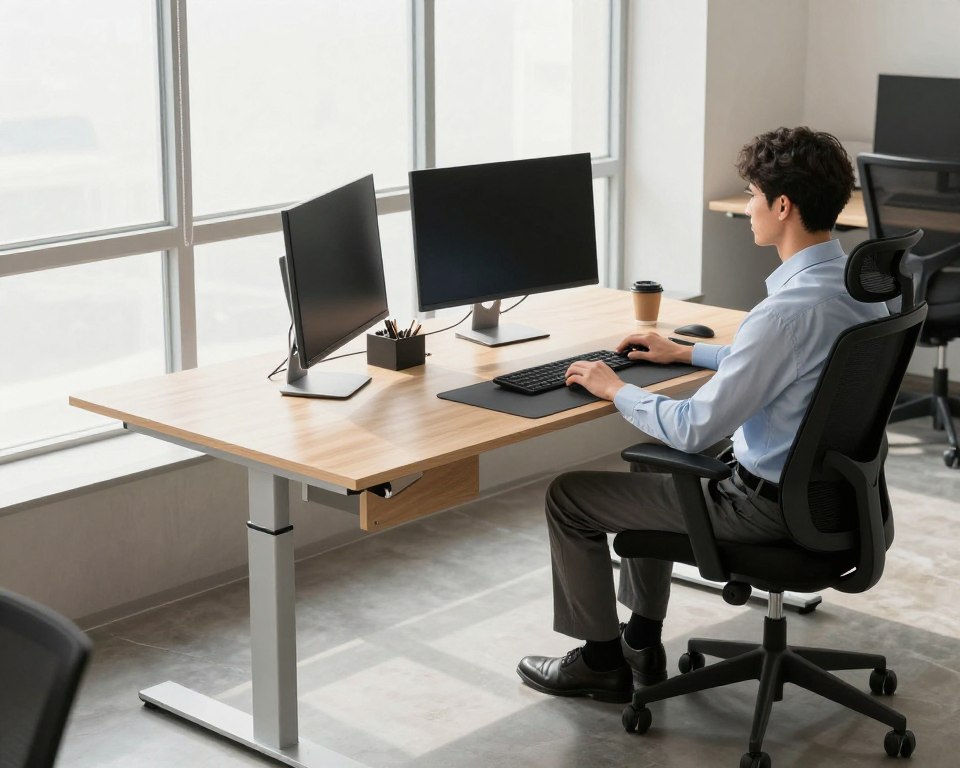
Self-audit in seconds: shoulders relaxed, elbows near 90°, wrists neutral, and screen top roughly at eye level. Good alignment reduces strain and supports long-term health.
“Less discomfort means fewer task interruptions and smoother attention spans during deep focus.”
Monitor Setup for Focus and Speed, From Single Screen to Dual Monitors
Positioning your screens correctly changes how quickly you read, switch tasks, and stay comfortable all day.
Stand height and basic rule
Raise a monitor 4–8 inches when you need to bring the top of the screen to eye level and keep your posture upright. This simple change reduces neck tilt and keeps the surface below usable.
Single, dual, or multiple monitors
Dual monitors improve efficiency by about 30% for many multitaskers. They cut app switching and keep reference material visible while you edit or code.
Use multiple monitors for design, trading, research, or writing with references. Fewer app switches support longer periods of focus.
Placement and distance
Set screens at an arm’s length distance and align the top of the screen at or slightly below eye level. These limits reduce neck strain and eye fatigue.
Monitor arms and ultrawide tradeoffs
Monitor arms reclaim surface space and let you refine angles to cut glare. Choose arms when the surface is shallow or you need precise positioning.
An ultrawide screen can beat multiple monitors if you prefer seamless window snapping, easier sharing in meetings, and no bezel gap. Opt for dual monitors when you need independent tilt, separate task zones, or a lower budget.
“Proper screen placement keeps essential information comfortable to read and reduces physical interruptions.”
work desk setup productivity Essentials You Should Optimize First
Start with the elements that shape your body and attention every hour. Prioritizing a few high-impact items gives faster, measurable gains than chasing decor.
Top priorities:
- Chair comfort: choose lumbar support and correct seat height to reduce aches.
- Screen height: top of the monitor at eye level to cut neck strain.
- Lighting: a dimmable task lamp plus balanced room light reduces glare and headaches.
- Cable management: trays, sleeves, and clips that tidy lines and improve safety.
Why these matter: better comfort and clearer vision reduce interruptions, which raises sustained focus and output. Cable tools alone can cut visible clutter by ~80%, improving both safety and mental clarity.
Desktop rule: keep only items you use every day within arm’s reach; everything else goes into drawers or vertical storage.
Examples: keep keyboard/mouse, a notebook, pen, one charging spot, and a water bottle. Store spare cables, extra paper stacks, and seldom-used tools away.
If you have symptoms, let them guide your first upgrade: headaches suggest lighting or glare fixes; shoulder pain points to monitor height; frequent searching means you need storage and labeling. For more gear guidance, see home office gear guide.
“Prioritize comfort and clarity first — aesthetics can wait until the essentials support your day.”
Keyboard and Mouse Ergonomics for All-Day Typing Comfort
Small changes to how you type and move the mouse can stop aches before they start.
Posture targets: aim for elbows near 90 degrees, wrists neutral (not bent up or down), and relaxed shoulders. These simple checks protect long-term health and reduce breaks from fatigue.
Neutral wrists and elbow angle targets for less fatigue
Keep forearms parallel to the floor and place the keyboard so your wrists float lightly above the keys. If you type for hours, small adjustments make a big difference.
Choosing an ergonomic keyboard and a properly sized mouse
Look for split keyboards around a 10-degree angle to keep hands natural. Standard flat keyboards work if you keep wrists straight and use short breaks.
Pick a mouse that fits your hand—roughly 7–9 inches for many adults. A too-small mouse forces grip tension and raises strain.
- Placement tips: keep the mouse close to the keys and avoid reaching.
- Use a mat to improve glide and cut noise.
- Trial different tools and adjust by your preferences and task type—writing, design, or spreadsheets demand different choices.
“Ergonomic choices reduce interruptions and support steady focus.”
Lighting Design: Combine Natural Light With Task Lighting
Clever lighting design makes a big difference in how long you can stay focused and how comfortable your eyes feel. Combine natural daylight with targeted task lamps to create a layered environment that avoids harsh contrasts and surprises.
Position lights to cut glare and reflections
Place task lights to the side of the activity area so beams do not hit the screen directly. Side placement reduces reflections and lowers eye strain during long sessions.
Avoid pointing bright bulbs toward the monitor or a glossy surface. If a window faces your screen, add a sheer curtain or shift the angle of the monitor slightly.
Dial brightness with reliable dimmers
Choose adjustable task lights with 0–100% dimming so you can match room light to the hour and to outside conditions. Dimmers let you keep a steady environment from dawn to dusk.
Pick the right LED color temperature
Target 5000–6500K for daylight-like clarity. This range helps with reading and screen work by improving contrast and keeping colors true under artificial light.
When to use monitor light bars versus desk lamps
Monitor light bars work well for monitor-heavy workflows and tight surfaces. They add extra illumination without taking surface area and help cut glare when placed above the screen.
Desk lamps are better for paper notes, sketching, or tasks that need directional light and shadow control. Examples to consider include the BenQ Monitor Light Bar series and the BenQ Reading Desk Lamp series for their focused designs.
“Good lighting is a primary driver of focus — it affects glare, comfort, and how long you can stay on task.”
- Why it matters: balanced lighting reduces headaches and supports steady focus.
- Placement rule: keep task light to the side and avoid direct aim at the screen.
- Tip: use dimmers and 5000–6500K LEDs for clear, daylight-like work.
Cable Management That Clears Visual Clutter and Improves Safety
A tidy cable plan clears the surface and lowers the chance of trips and snags.
Why it matters: good cable management cuts visible chaos by ~80%. It reduces distractions, stops accidental unplugging, and lowers trip hazards during client calls or meetings.
Core tools and what each does
- Under-desk tray — holds power bricks and strips out of sight for cleaner floor and safer power access.
- Cable sleeves — bundle cords into neat runs; a 40-inch sleeve works well for monitor arrays and peripheral clusters.
- Clips and tie-down points — secure edges and route lines along the frame to prevent sagging and snags.
Simple routing plan
Separate power and data lines where possible to reduce interference. Keep cables off the surface and run them behind the rear rail or under the tray.
Label both ends of each cord for faster troubleshooting and easier device swaps like docking or adding a webcam. A clean path means you swap gear without redoing the whole run.
“Organized cabling gives a more professional appearance and smoother device changes.”
Maintenance tip: do a monthly check to tighten ties and confirm access points still match your gear. Small upkeep prevents cable chaos from creeping back.
Storage and Organization Systems That Keep Tools Within Reach
Smart storage turns chaotic piles into predictable places so minutes are not lost searching. The goal is simple: keep frequently used tools within arm’s reach and move rarely used items out of sight to protect focus.
Physical systems that save time
Use desk organizers that accept documents up to ~13 inches, drawer dividers for small items, and vertical file holders for papers and folders. These systems make it easy to sort by project or client.
Document control workflow
Adopt a three-path rule: file active projects, scan reference material for archive, and shred sensitive or obsolete paper. This routine keeps items from piling up and speeds retrieval.
Secure digital management
For US users, choose document management with 256-bit encryption, consistent naming conventions, and folders organized by project or client. Regular backups and single-sign-on reduce risk and save time.
- One home for each category: give every item a default place so cleanup is automatic.
- Monthly check: purge, rescan, and relabel to prevent clutter from returning.
- Outcome: fewer minutes spent searching means more deep-focus time.
Clutter-Free Maintenance Routines You Can Actually Stick To
Clear routines keep your area usable each morning so you spend less time preparing and more time doing. Small, repeatable actions separate a one-time makeover from a space that performs every day.
The daily 5-minute reset to protect focus
Spend five minutes at the end of each day to clear the surface, return items to storage, and wipe high-touch spots. Prep tomorrow’s top task on a sticky note or in your task app.
Why it works: the tiny time cost reduces the startup barrier each morning and keeps your routine simple enough to repeat.
Weekly and monthly maintenance checkpoints
- Weekly: dust monitors, clean keyboard and mouse, sanitize the surface, and audit paper piles.
- Monthly: remove unused items, reassess your workflow, and update cable routing after any new gear is added.
- Outcome: scheduled upkeep prevents long, disruptive cleanups and saves cumulative time over the month.
“Short, regular upkeep protects focus by lowering the start-up cost of getting to real work.”
Comfort Upgrades: Desk Mat, Footrest, and Small Touches That Reduce Fatigue
Minor comfort upgrades make long days less tiring and help you keep steady focus. These additions protect your posture and support overall health with little cost or clutter.
Why a mat helps
Recommend a desk mat around 24×14 inches to give room for writing and to anchor accessories. A quality desk mat smooths pen strokes, reduces keyboard and mouse noise, and protects the surface from scratches and spills.
Footrest and posture tips
Use a footrest when your feet don’t sit flat. Adjust it roughly 4–12 inches to support circulation and keep hips level. Proper height keeps hips stable and shoulders relaxed.
- Why it matters: reduced fatigue leads to longer, higher-quality focus sessions and better health over time.
- Small, non-distracting items—coaster, subtle wrist support, and a single charging spot—improve comfort without clutter.
- Pair these items with a chair and monitor position to keep feet supported and spine aligned.
“Small comfort choices yield big gains in comfort and concentration.”
Workspace Environment: Air Quality, Plants, and Acoustic Control
A thoughtfully arranged environment helps your brain stay calm and ready for focused tasks.
Low-maintenance greenery that supports concentration
Plants add color and subtle scent while improving air quality. Choose succulents (water every 2–3 weeks) and snake plants for low care and proven benefits.
Snake plants are noted for removing toxins like formaldehyde and for being easy to keep in small light.
Air quality impact and plant placement in small areas
Good air helps cognition and lowers fatigue. Research often cites gains near a 30% improvement in perceived air quality when greenery is present.
Place plants in indirect light, avoid blocking monitor sightlines, and use shelves to free surface space in a tight area.
Noise control for open offices and home corners
Acoustic tools cut distractions fast: noise-canceling headphones reduce roughly 30 dB, while sound panels can absorb up to 70% of ambient noise.
Combine headphones with panels for shared offices or use a couple of panels behind your chair at home to create a quieter feel.
Creating a quiet-zone feel
- Set clear cues: an “in focus” sign or light and predictable deep work hours.
- Adopt a headphones policy in shared spaces to respect silence.
- Use small rituals—closed door, soft music, or a plant on a shelf—to signal focus time.
“Air, greenery, and sound controls are simple levers that make the environment more supportive of long stretches of attention.”
Tech Tools and Time Management Systems to Protect Deep Work
A lean set of apps and tidy connectivity cuts the friction that kills long focus sessions. Good tech reduces “setup friction” — the small stops that pull you out of flow when logging tasks, switching devices, or joining meetings.
Project and task capture
Pick one simple stack: Todoist, Trello, or Notion for quick capture and project management. Studies show good project tools can increase task efficiency by ~25%.
Protecting focused time
Use calendar time blocking, lightweight time tracking, and Pomodoro cycles (25-minute focus intervals) to build momentum. These methods make it easier to defend long sessions against interruptions.
Hardware that reduces friction
Docking stations and USB hubs let you connect with one cable; charging stations prevent last-minute battery panic. Keep common ports visible for fast access.
Meeting-ready gear
Place your webcam at eye level and use a quality microphone. Stable side lighting and a tidy background make hybrid work calls smoother and more professional.
“Reduce friction with a small, reliable tech stack and simple time rules.”
- Power + connectivity checklist: single-cable docking, backup charger, reliable internet, and spare ports for peripherals.
Style and Personal Touches Without Losing Professional Focus
Personal style should lift your focus, not crowd your surface. Choose accents that inspire and keep form and function in balance. Start by prioritizing functional items and let decor support your daily rhythm rather than compete with it.
Minimalist principles for fewer distractions
Fewer visible items means less to scan with your eyes. Use hidden storage, trays, and consistent cable routes to cut visual noise.
One-shelf rule: keep frequently used tools within reach and tuck extras away. This keeps a clean silhouette and a calm mindset.
Style menu: quick identifiers
- Biophilic: natural materials, a few plants, and soft textures for calm.
- Executive: premium finishes, leather accents, and muted metals for a formal tone.
- Retro: mid-century accents, warm wood, and subtle patterns for character.
- Creative: inspiration boards, rotating art, and tactile materials to spark ideas.
- Tech-heavy: multiple screens, clean hubs, and smart lighting for intense digital work.
How many personal items to display
Limit visible personal items to about three. That keeps motivation high while preserving a tidy, professional appearance.
Rotate one item occasionally to keep the space fresh without adding clutter.
Color choices that support mood
Use neutrals for calm focus and add a single accent color for energy. Avoid busy palettes that steal attention from tasks.
Match color and material choices to context: conservative palettes for an office desk, and bolder accents at home where preferences can be broader.
“Let style follow function: choose elements that reinforce clarity, support mood, and respect the space’s purpose.”
Conclusion
Small, targeted changes add up fast — from a footrest to better lighting — and change how your day flows.
Follow a simple recipe: define what matters, assess your style, fix basic ergonomics, then tune lighting, cable management, and storage for a calmer routine.
Keep the plan maintainable. Use a daily 5-minute reset and monthly checkpoints so the space stays useful instead of drifting back into clutter.
Start with one high-impact change this week — raise a monitor, fix a glare source, or route cables cleanly. That single move often unlocks more gains.
Quick checklist: check posture, clear the top, set lighting, secure cables, and stage tomorrow’s top task. Treat the area as an evolving system and adjust as your tools and needs change.