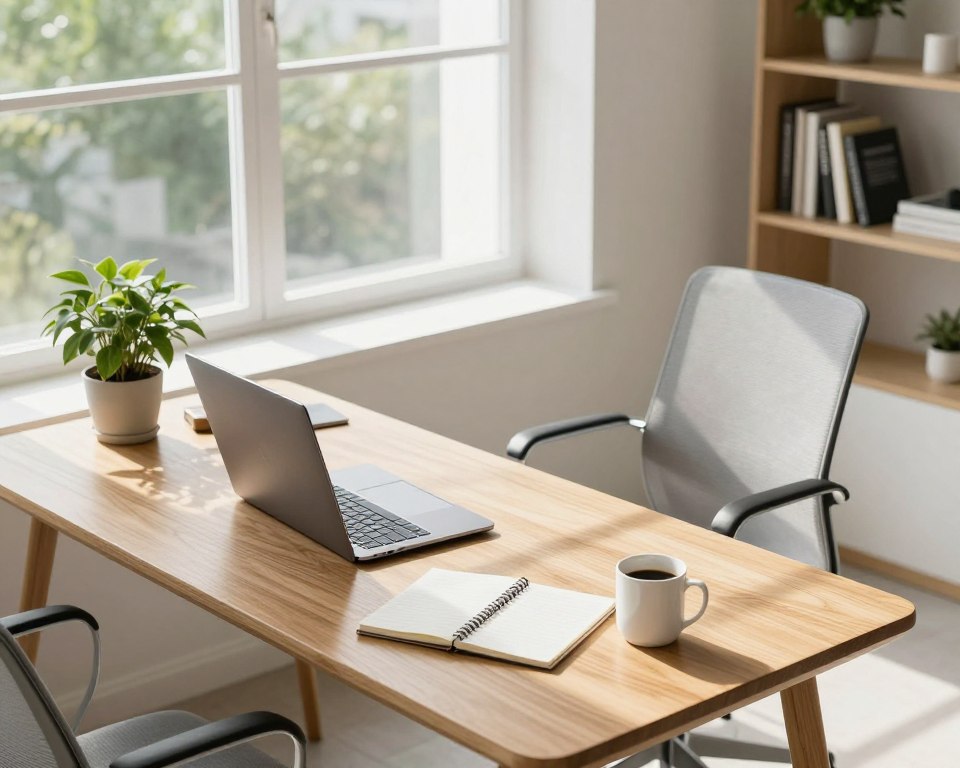
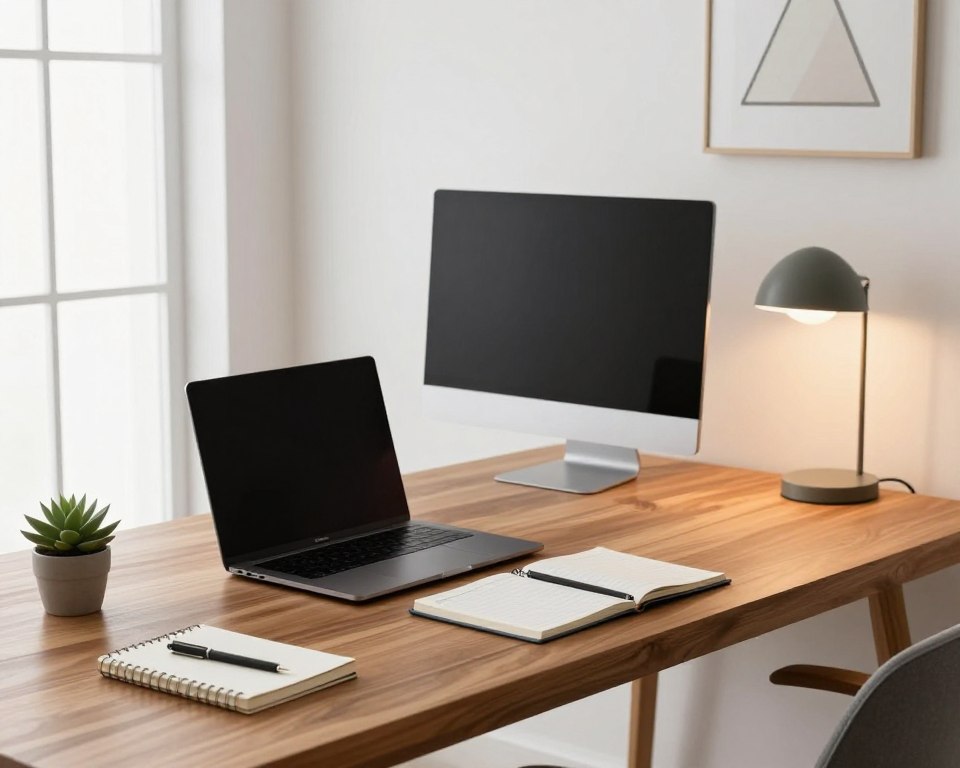
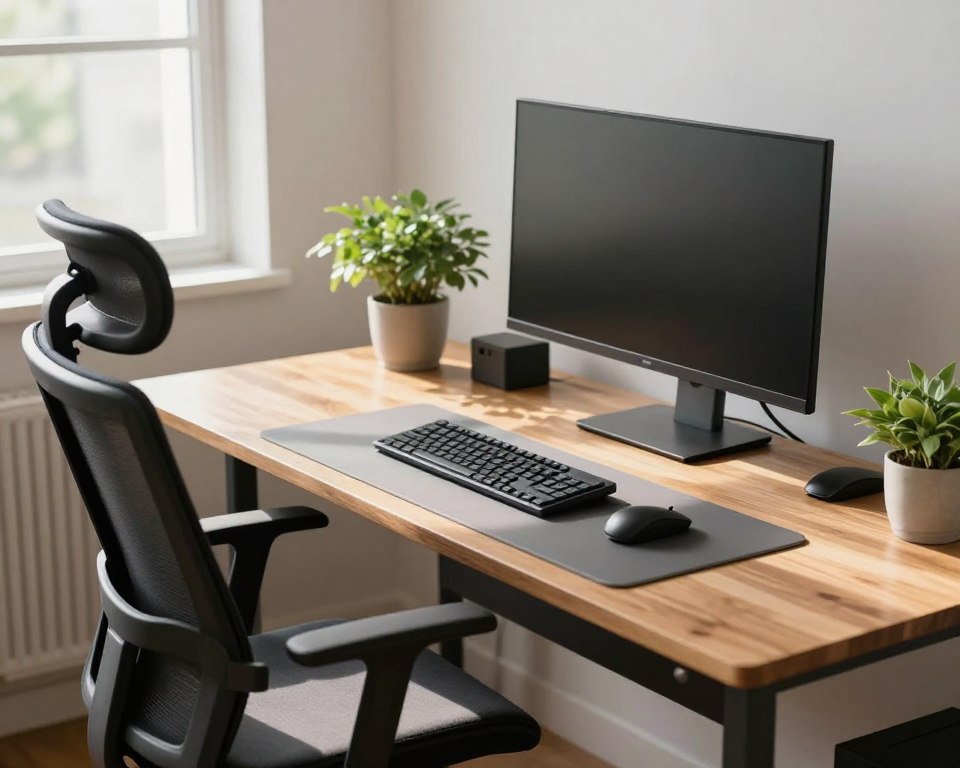
Ergonomics means arranging your work area so your body stays aligned and comfortable. This short guide promises small, practical changes that cut strain, pain, and fatigue without forcing you to push through discomfort.
Start with the chair, then adjust desk height, monitor placement, keyboard and mouse, lighting, and movement habits. Follow that order so each change builds on the last and feels natural.
Neutral posture looks like a supported spine, relaxed shoulders, elbows close, and feet held up. That stance reduces pressure on joints and keeps muscles from tiring during a long work day.
This approach fits small workstations and laptop setups. If pain continues or worsens after changes, see a clinician or physical therapist for a full assessment. Small moves now protect long-term health and help you stay productive in any office or home setup.
Why an Ergonomic Desk Setup Matters for Body Health and Pain Prevention
Small, practical changes at your workstation can cut daily strain and protect long-term comfort. Neutral posture spreads load across larger muscles and joints. That lowers wear on the back and neck during long computer sessions.
Ergonomics basics: building a neutral posture
Neutral posture keeps the spine supported, shoulders relaxed, and elbows close to the body. This reduces cumulative load on tendons, nerves, and spinal discs. Over time, that gentle protection prevents soreness and reduces the risk of chronic musculoskeletal disorders.
Common problems linked to poor setup
Poor habits—slouching, forward head position, and unsupported arms—can lead to real issues:
- Muscle and joint strain: tight shoulders and lower back tension.
- Nerve symptoms: tingling or numbness in hands and wrists.
- Eye strain and headaches: from improper screen height and glare.
Early warning signs include wrist soreness, frequent headaches, and end-of-day fatigue. Simple changes can keep comfort high and focus steady. For practical guidance, see this brief on desk ergonomics. Ergonomic improvements work at home or in the office and act as everyday safety, not a luxury.
Start With Your Chair and Desk Height for Better Posture All Day
A stable chair and correct height at your work surface cut strain and improve comfort fast. Small changes help the spine and hips share load and keep muscles relaxed.
Set chair height so feet stay flat and knees sit near 90°
Adjust the chair so your feet rest on the floor or on a footrest. Knees should be about a right angle with thighs roughly parallel to the floor.
Use lumbar support for the lower back curve
Place support where the lumbar spine naturally curves. This prevents slouching and reduces low-back pain during long sessions.
Match desk height for relaxed shoulders and 90° elbows
Raise or lower the surface so shoulders stay down and elbows bend near 90 degrees. This protects the neck and reduces arm strain.
- Fine-tune seat depth: leave 2–4 inches behind the knee for circulation.
- Adjust armrests so arms feel lightly supported without pushing the forearms up.
- Quick self-check: feet supported, back supported, shoulders down.
“Good posture starts at the seat; small adjustments yield big relief.”
How to Set Ergonomic Desk Layout for Monitor Position and Eye Level Comfort
Place your monitor where your eyes naturally rest to cut neck and eye strain. Start seated in your normal posture and look straight ahead. Align the top third of the screen with your gaze for lasting comfort.
Quick step-by-step placement
Sit upright. Look forward. Move the monitor until the top third of the screen meets your eye level.
Distance and neck safeguards
Keep the screen about an arm length away. If you lean forward or squint, the monitor is too close. A proper distance eases neck and eye strain.
Centering and dual-monitor tips
Place the monitor directly in front of you so you avoid repeated neck rotation. For two screens, center the primary monitor and angle the secondary inward slightly.
Reduce glare and fine-tune comfort
Tilt the screen slightly and avoid direct window reflections or harsh overhead lights. If headaches or eye fatigue continue, try lowering brightness, increasing contrast, or moving the screen a bit until symptoms ease.
“A small monitor adjustment often prevents hours of tension.”
Keyboard and Mouse Setup to Protect Wrists, Elbows, and Arms
Place input devices so your arms rest comfortably without reaching forward. This small change cuts repetitive strain and keeps shoulders relaxed during long computer tasks.
Keep devices within easy reach
Keep the keyboard and mouse close enough that you do not stretch your shoulder for clicks or keys. Short reaches reduce shoulder strain and lessen repetitive motion over the day.
Maintain neutral wrists and 90° elbows
Wrist position matters: keep wrists straight and hands floating lightly over keys. Bend your elbows near 90° and keep them close to the body so forearms do the work, not the desk edge.
Match surface level and consider upgrades
Place keyboard and mouse on the same surface so shoulders stay even. If you have persistent pain, numbness, or forearm discomfort, try an ergonomic keyboard or a vertical mouse to support a neutral grip.
- Quick fixes: pull devices closer, relax shoulders, stop gripping the mouse.
- Use wrist rests only for pauses, not while typing.
- Test changes for comfort before buying new gear.
“Small reach reductions often prevent hours of tension.”
Laptop and Small-Space Workstation Tweaks That Reduce Neck and Back Pain
Small work surfaces often force awkward bends that strain the neck and upper back. A laptop’s attached screen and keyboard create a posture tradeoff: raise the screen and you lose comfortable typing, keep typing comfort and you bend the neck and round the shoulders.
Simple fix: lift the laptop on a riser or stable stack and use an external keyboard and mouse. This keeps the screen at a better position while letting elbows stay near 90° for typing comfort.
When space is tight, prioritize screen height and input comfort. Remove nonessential items so the most-used tools fit in a clear work zone.
- Reach zone: keep phone, notebook, and headset within easy forearm reach to cut twisting and repeated strain.
- Cable tips: route chargers along the rear edge and bundle excess cable to free usable surface space.
- Adaptable spots: if you use a kitchen counter or temporary surface, place a riser and portable keyboard so your back and neck stay protected.
“A small change in position can prevent a day of back pain and fatigue.”
Lighting and Screen Comfort to Cut Eye Strain and Headaches
Good lighting can cut headaches and keep your eyes working comfortably through a long workday. Poor overhead light and glare force squinting and speed up visual fatigue. That adds up over the length of a busy office day.
Aim for even, low-glare lighting. Use warm bulbs and indirect sources so light stays balanced across the workspace. Many guides recommend roughly 500–750 lux for clear desk work to reduce eye strain.
Task lighting and monitor position
Place a task lamp to light paper without shining on the monitor. Angle the monitor away from windows and bright lamps so reflections do not fall into your eyes.
- Match screen brightness with room light — not a bright beacon in a dark room.
- Use blinds or reposition the monitor during strong daylight.
- Keep the screen clean to cut haze and mirror-like glare.
Small lighting tweaks raise comfort and lower fatigue. Better light reduces eye strain, improves focus, and prevents headaches across a long work day.
“Balanced light and a well-placed monitor often stop eye complaints before they start.”
Maintain Ergonomics Throughout the Day With Breaks, Movement, and Sit-Stand Options
Movement breaks are the missing link between a good workspace and lasting comfort. The body drifts into slouching even when a chair and monitor are correct. That slow collapse raises strain and fatigue over the course of the day.
Hourly break template that really works
Every hour, stand, stretch, or walk for 5–10 minutes. Short walks reset posture and reduce forward head position. These pauses cut muscle tightness and lower-end fatigue.
Alternate sitting and standing for circulation
Swap sitting and standing throughout day in short blocks rather than standing all at once. Aim for gradual increases in standing time and focus on circulation, not endurance. This reduces overall fatigue and keeps focus sharp.
Standing basics and support tools
For a standing station, match desk height to elbow level with relaxed shoulders and wrists neutral. Keep weight evenly on both feet and maintain stable footing on the floor. Use an anti-fatigue mat, supportive shoes, and ramp up standing minutes slowly.
“Short, regular movement beats long, static comfort every day.”
Ergonomic Mistakes That Increase Discomfort and How to Fix Them Fast
A comfy-looking spot may actually promote bad posture and lasting discomfort. The classic couch plus TV tray forces slouching and a forward head. Over time that adds neck and back pain even when the seat feels soft.
Quick self-audit you can complete in two minutes:
- Is the monitor top third at eye level?
- Do your feet touch the floor or a footrest?
- Does the chair provide lumbar contact?
- Is the keyboard/mouse within easy reach?
Fast fixes for the top culprits
Raise a low monitor so the top third aligns with your gaze. Add a small footrest if feet don’t reach the floor. Pull the keyboard and mouse close to cut forward reaching and shoulder strain.
Shared workstations and quick checks
At hot desks make the “big four” adjustments every time: chair height, lumbar support, monitor height, and input reach. Small repeats keep posture steady across users.
When to seek care
If pain or numbness persists after sensible changes, or symptoms worsen, see a clinician or physical therapist. Early care prevents minor aches from turning into long-term problems.
“Fix the common mistakes fast and you cut hours of discomfort each week.”
Conclusion
Make one clear change now and watch daily comfort improve at your workstation.
Start with the chair and desk height; those form the foundation for good posture and long-term health. Match seat support and surface height so feet rest and elbows bend near 90 degrees.
Bring the monitor so the top third of the screen meets your eye line and sit about an arm’s length away. Keep the keyboard and mouse close and the wrist straight so your arms work without strain.
Small workspace changes cut pain best when paired with regular movement breaks and quick posture checks. Treat ergonomics as an adjustable system that shifts with tasks, equipment, or laptop use.
Today: make one chair tweak, one monitor tweak, and one keyboard or mouse tweak. Reassess comfort after a full workday and repeat small fixes as needed.