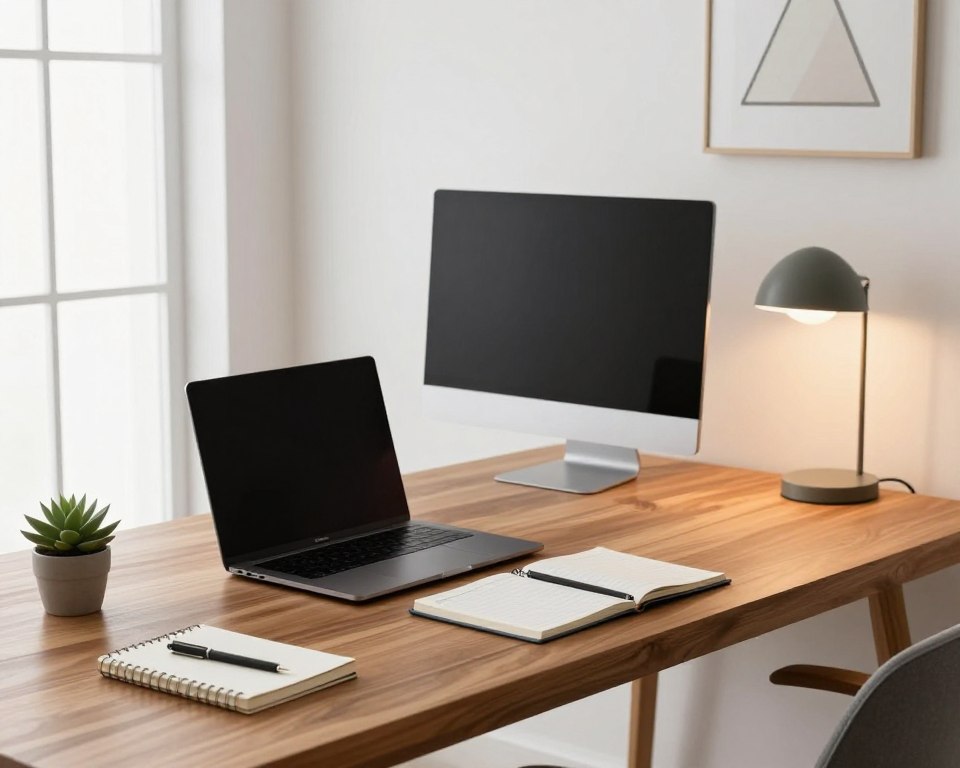
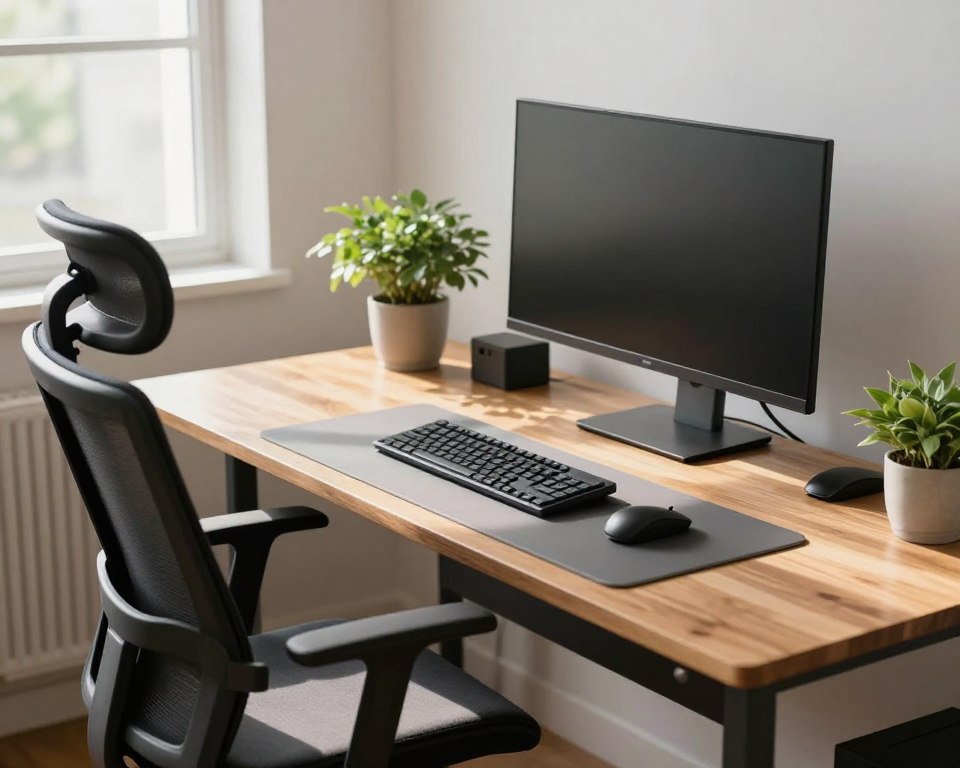
Keep your body neutral. A good workspace helps your neck stay relaxed, your wrists straight, and your back supported. Small changes can cut strain and boost focus.
Start with the chair. Adjust height, add lumbar support, and sit so your feet rest flat. Next, position the table and mouse so your arms stay close to your sides.
Place the monitor so the top of the display sits at eye level. Tilt the screen slightly back to reduce neck bending. Bright, even lighting cuts eye strain and helps you stay alert.
This short guide homes in on two big drivers of pain: seating and screen alignment. Make one tweak, work for 30 minutes, then fine-tune until it feels right. Experts still advise moving every hour to avoid stiffness.
Goal: more comfort and better focus. Simple fixes — like raising a laptop, adding a cushion, or moving the mouse closer — can change your day without replacing all your office gear.
Why ergonomics matters for comfort, focus, and less strain
How you sit and reach during the day shapes comfort, pain, and how well you focus. When the body isn’t working against your tasks, you use less energy and fight less fatigue.
What a “neutral position” looks like
Neutral position gives clear checkpoints that are easy to check between tasks.
- Head stacked over the neck; the neck is not bent up or down.
- Shoulders relaxed and not shrugged; arms stay close to the sides.
- Spine supported in its natural S curve; sit back to keep the lower spine supported.
- Wrists straight, not cocked up or bent sideways when typing or using a mouse.
Common mistakes that cause pain over time
Small daily misalignments add up into lasting discomfort and back pain.
- Slumping at the chair edge or leaning forward.
- Raising the chair so feet dangle and legs pull.
- Keeping the mouse or keyboard too far, which stresses the shoulders.
- Placing the screen too low or off-center, causing neck strain.
Fix it in order: support the back and spine first, then set input positions to protect shoulders and wrists, and finish with eye-level screen alignment.
Set your chair first for all-day support and better posture
Get the chair right first — push your hips back so the backrest can do its job. This creates a reliable baseline that then guides height, keyboard reach, and screen position.
Sit all the way back to protect your spine
Slide your hips fully rearward. When your lower back rests against the backrest, the chair can support the natural S curve of your spine.
Adjust seat height for stable legs and feet
Set height so knees are level with or slightly below hips. Your feet should rest flat on the floor with no edge pressure behind the thighs.
Dial in recline and arm position
A recline near 100°–110° reduces load on the back while keeping you ready to work. Tune armrests so shoulders stay relaxed and elbows sit close without flaring.
Use cushions and a footrest when needed
If the chair lacks lumbar support, add a lumbar cushion or seat pad to extend comfort. When raising the seat makes your feet dangle, add a footrest to keep legs supported.
- Quick checks: hips back, knees level, feet flat, shoulders relaxed.
- Good chairs let you fine-tune these points; examples like the Steelcase Gesture show how much adjustability helps.
Build a proper desk ergonomics setup with the right desk height, keyboard, and mouse position
Start with input height. Your keyboard and mouse position begins with a measured desk height that lets elbows sit slightly open and forearms nearly level with the floor.
Choose a height that protects shoulders and wrists
Target an elbow angle around 100°–110° with relaxed shoulders and straight wrists. This keeps typing forces low and the body aligned while using a computer.
Fix desks that sit too high
If a 28–30 inch desk lifts your arms, add a keyboard tray that holds both keyboard and mouse, or raise your chair and use a footrest so feet stay supported.
Centering, wrist care, and input choices
Center the keyboard to your torso to avoid twisting. Keep wrists neutral and avoid resting weight on a palm rest while typing; use it only between keystrokes.
Keyboard and mouse selection
Consider a split or compact keyboard to reduce shoulder hunching and bring the mouse closer. Pick a mouse that fits your hand or try a trackball or stylus/tablet when wrist or shoulder pain persists.
Align your monitor at eye level and reduce screen-related neck and eye strain
Align your display so your head stays stacked over your spine, not pushed forward. Set the screen about an arm’s length away, then fine-tune distance until text and icons are easy to read without leaning in.
Use the top-third rule: raise the monitor so the top third of the display sits at seated eye level. Bifocal wearers may prefer it a bit lower. This keeps your neck neutral and reduces forward head posture.
With a laptop, raise the screen using a stable stand or riser such as the Rain Design iLevel2 and add an external keyboard and mouse. Consider a monitor arm like the Herman Miller Jarvis for quick height and tilt changes.
Center the monitor and source documents to avoid repeated turning. Place papers on an in-line copy stand or beside the screen so your head stays facing forward.
- Angle the screen at right angles to windows, use blinds, and add balanced task lighting (IKEA Forså works well).
- Keep your phone within reach and use a headset or speakerphone to prevent shoulder cradling.
- After changes, work for 20–30 minutes and re-check eye comfort, neck tension, and shoulder relaxation.
Conclusion
Make the last step a simple habit: measure comfort after thirty minutes and change one variable at a time. Lock in the chair for back support first, then set input reach, and finish with monitor height and lighting.
Daily checks keep small issues from becoming lasting pain. Make sure your feet rest on the floor or a footrest, shoulders stay relaxed, wrists remain neutral, and the screen keeps your neck comfortable.
Take 1–2 minute stretch breaks every 20–30 minutes, swap tasks or rest for 5–10 minutes each hour, and look into the distance for 20 seconds to ease eye strain. If discomfort lingers after a few days, tweak one item rather than replacing everything.
For more detail on configuring your work area, see this desk ergonomics guide. Small adjustments over time cut pain and fatigue, helping you focus longer during the work day.